 Tempaper
Jot it down from your notification bar. Keep today in sight.
A gate code, a delivery note, a number someone just read out. Tempaper is a pocket notebook for your notification bar: tap Write to save a line without opening the app, and see today's to-dos whenever you pull down the shade.
Your notification bar is the notebook
Turn on Quick memo in notifications in Settings, and Tempaper stays one swipe away.
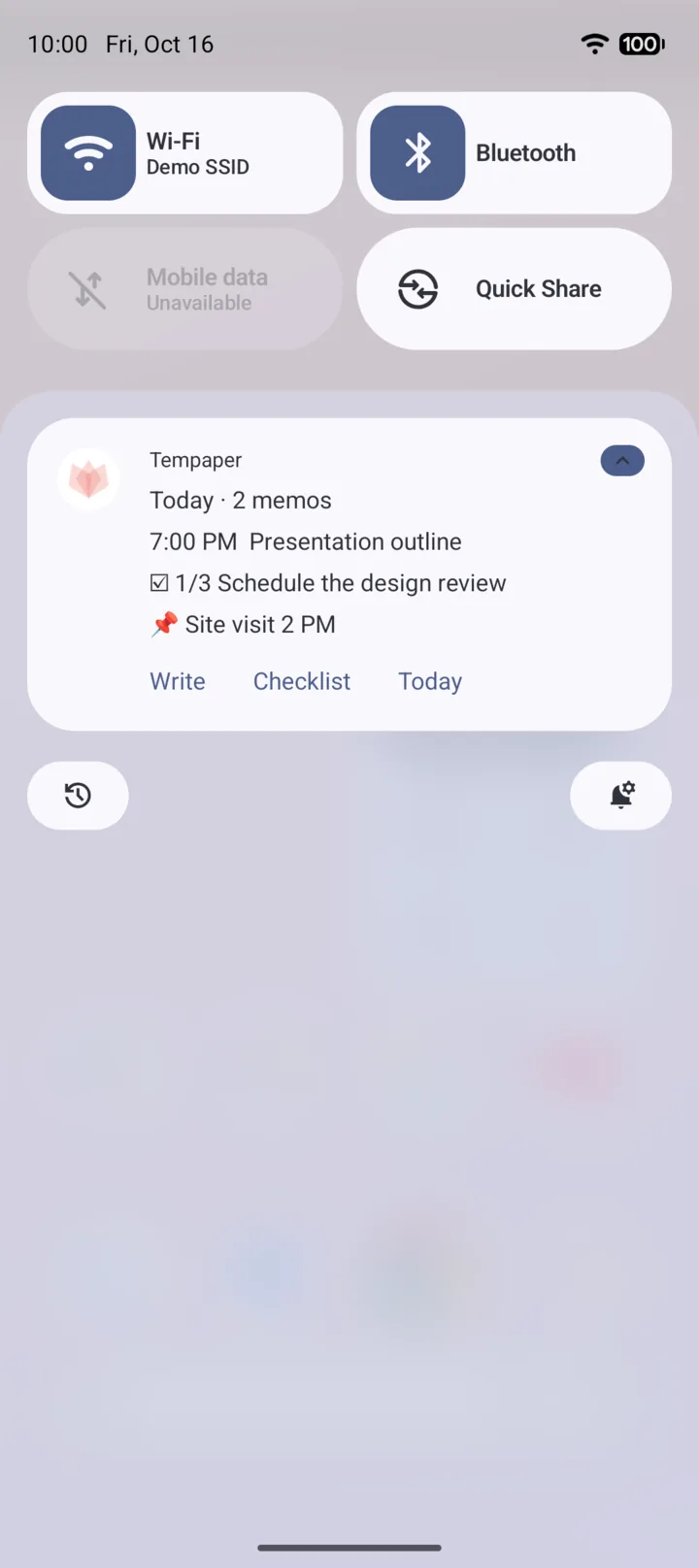
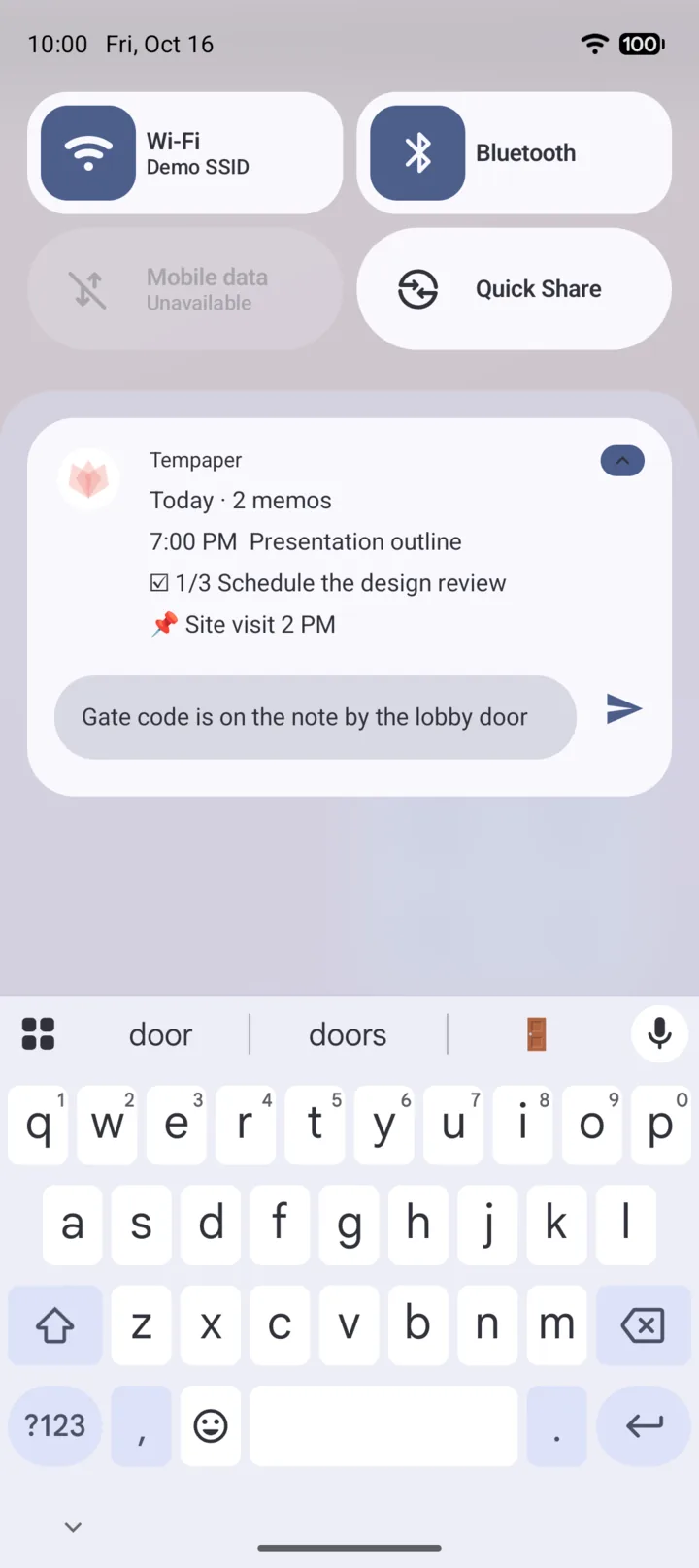
- Write right there. Tap Write in the notification and type a line. The app doesn't open, and the notification briefly shows "Saved".
- Today at a glance. Expand it for today's reminders, checklist progress, notes set for today and pinned notes, up to five lines. Today opens the day in your calendar.
- Cleared? It comes right back. Swipe it away or tap Clear all, and it shows up again. You can turn this off.
- Quiet on the lock screen. The lock screen shows only how many memos you have today, unless you choose to show more.
Start a memo from wherever you are
Tempaper opens as a small window on top of what you're doing, so a thought takes seconds to save.
From your home screen
Quick write opens a new memo in one tap. Checklist, today's memos and memo list widgets keep things in view.
From the notification bar
Turn on Quick memo in notifications in Settings. Tap Write to type right in the notification, Checklist for a new checklist, or Today for today's memos.
From Quick Settings and the app icon
Add the New memo tile to Quick Settings, or long-press the app icon for New memo and New checklist.
From any app
Share text from a browser or messenger to Tempaper, and it lands in a new memo.
Tick it off, and don't forget it
Memos that help with the day's work, not just hold it.
- Checklists. Turn a memo into a checklist and tick items off in the app or right on the home screen widget.
- Reminders. In an hour, this evening, tomorrow morning or at a time you pick. Snooze for 10 minutes from the notification.
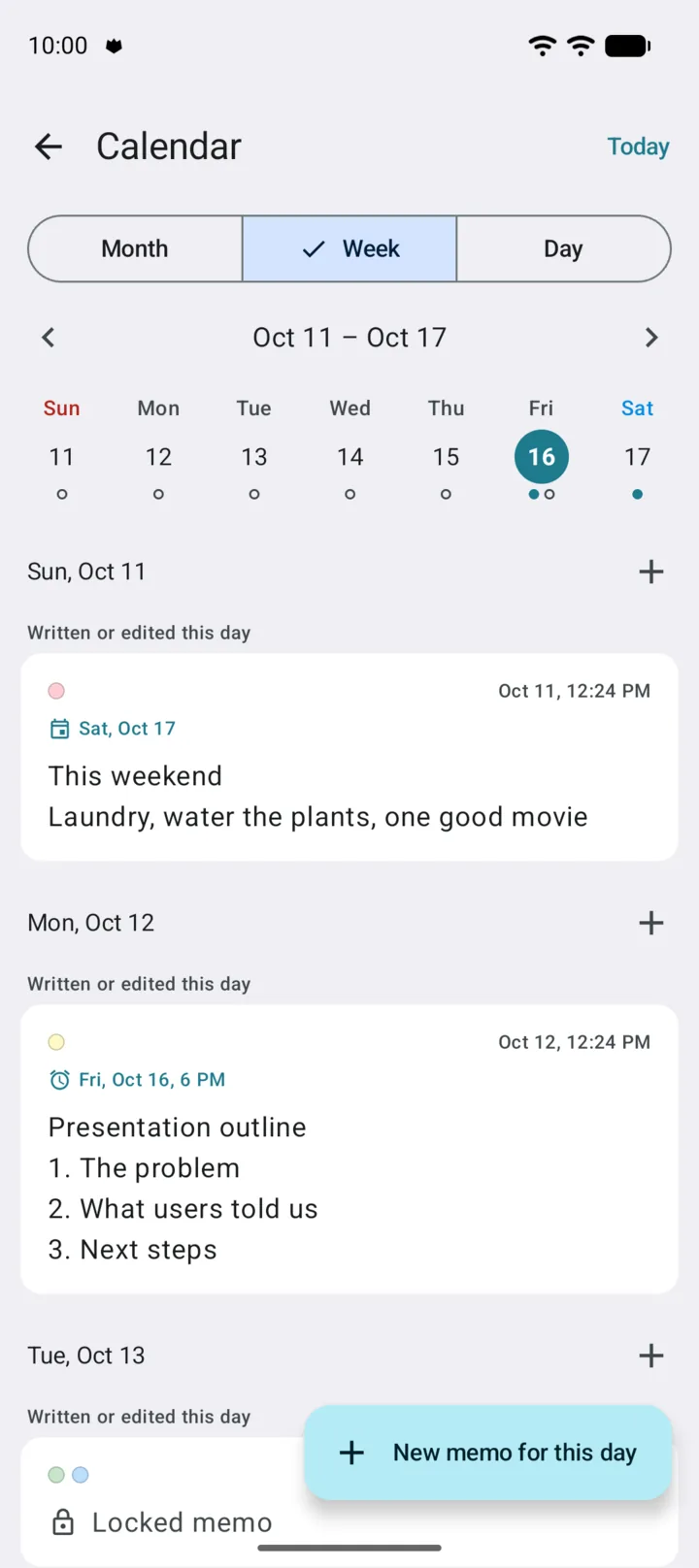
- Calendar. Month, week and day views. Give a memo a date and it lands in that day, next to that day's reminders and checklists.
- Tap to call. Phone numbers, email addresses and web links in a memo open with a tap.
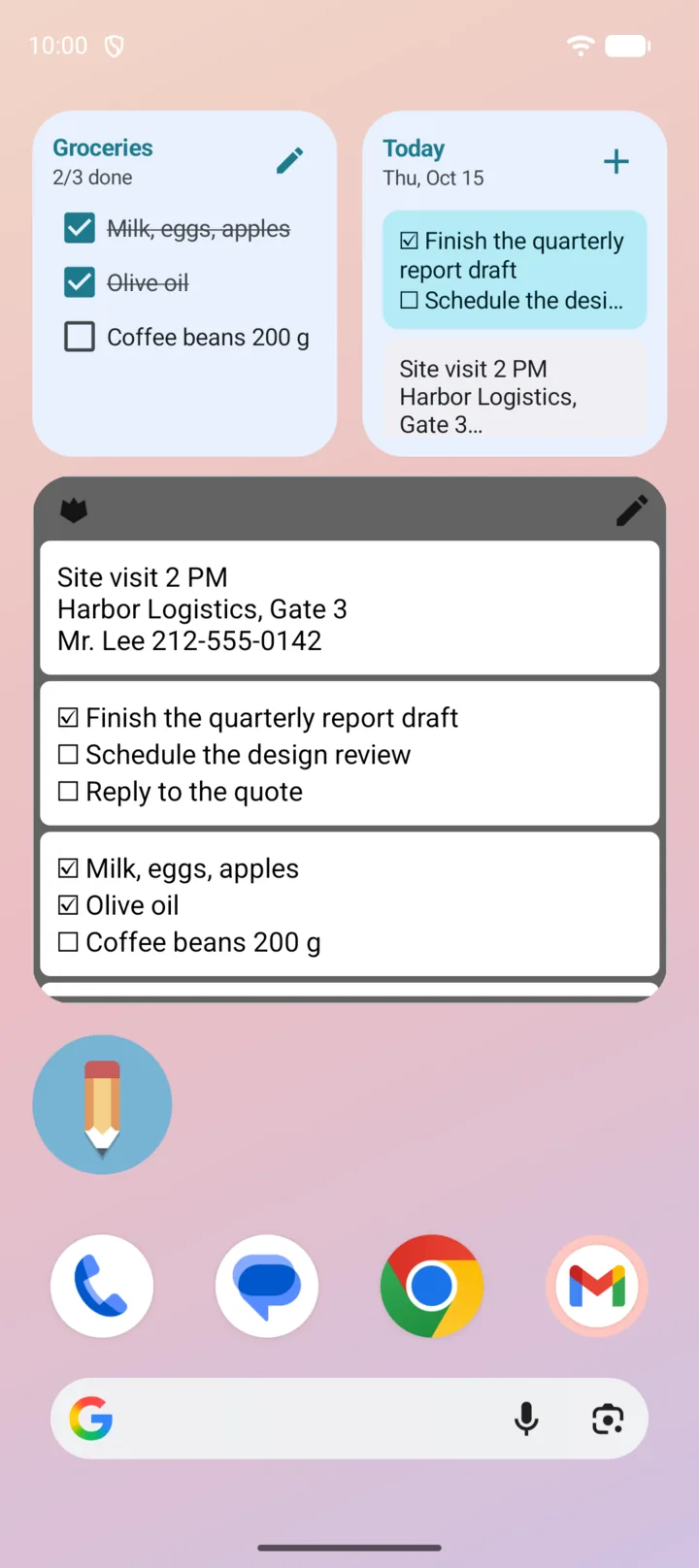
Widgets for your home screen
Five widgets. Long-press your home screen, tap Widgets and look for Tempaper.
- Checklist. Pick a checklist memo and tick items off on the home screen.
- Today's memos. Memos set for today and memos you wrote today, with a + to add one for the day.
- Memo list. A scrolling list of memos. Pick a label, and set the text colour and size, background and border.
- Single memo. Pin one memo you want to see every day, with its own colours, style and alignment.
- Quick write. A small button that opens a new memo straight away. Pick the icon you like.
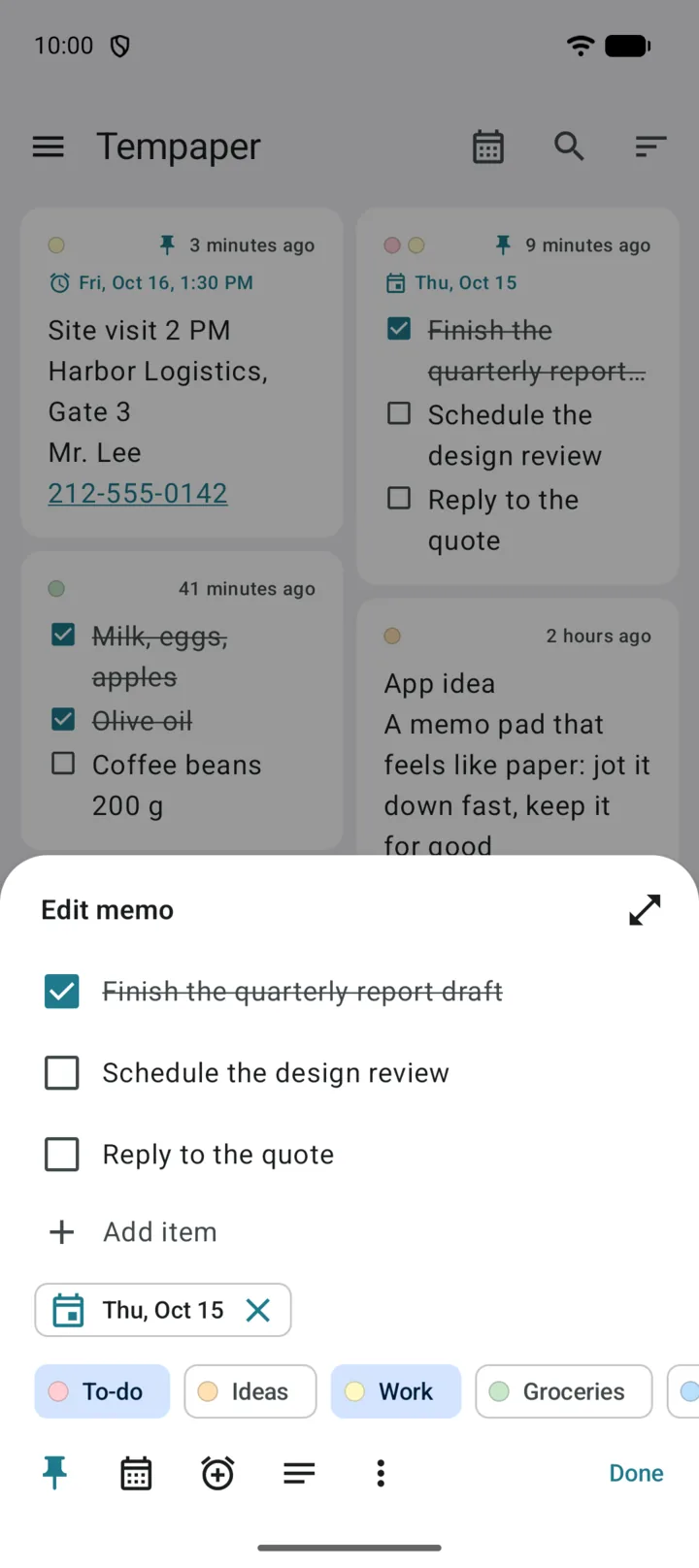
Sort it later with colour labels
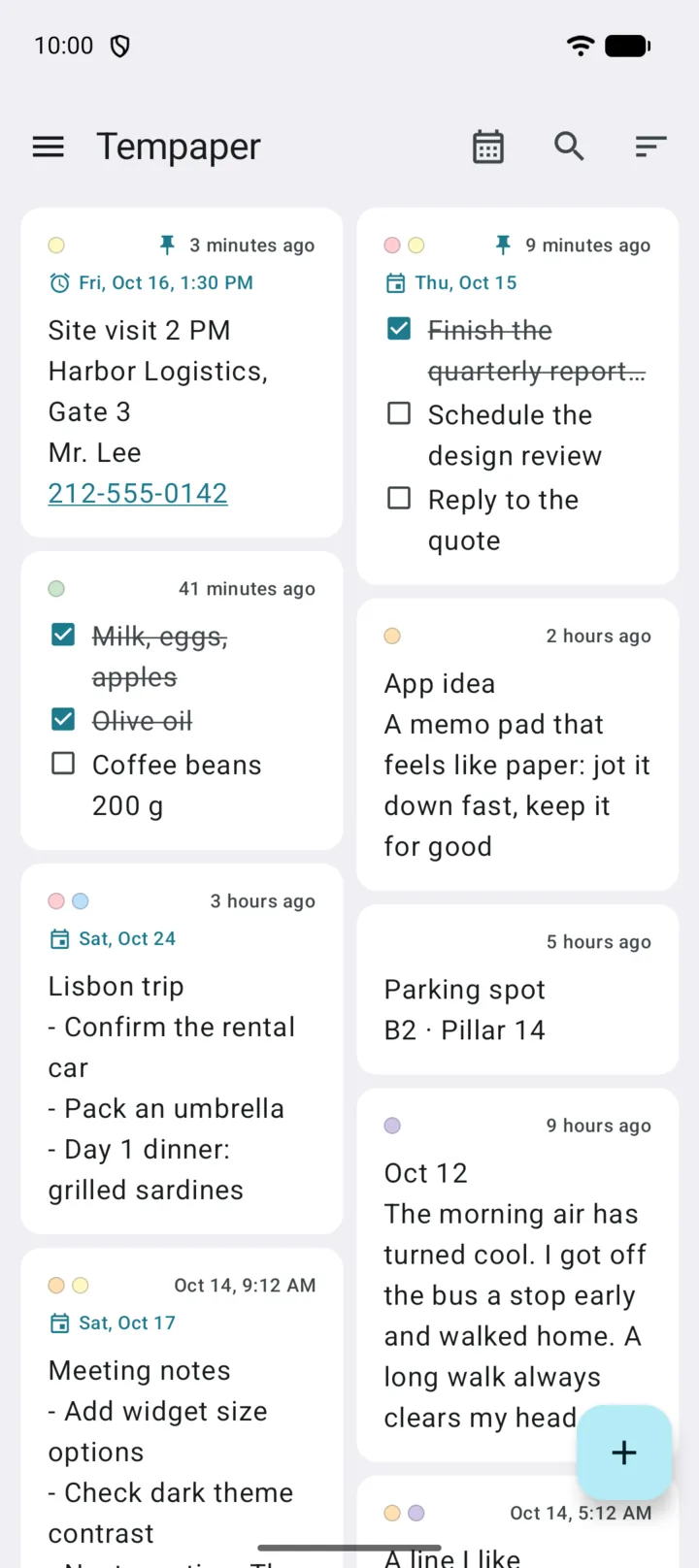
Give each memo one or more colours, name them however you like, and reorder them by dragging.
- Ideas
- To-do
- Quotes
- Shopping
- Work
- Reading
- Filter by colour. Tap a label in the side menu to see only those memos. Long-press to combine labels.
- Search. Find any memo by a word it contains, with matches highlighted.
- Pin, sort and archive. Keep important memos on top, sort by edited, created or your own order, and archive what you're done with.
- Edit in bulk. Long-press memos to select several, then share, pin, archive or delete them together.
Private and backed up
Your memos stay on your phone, and only you decide where copies go.
- App lock. Open Tempaper with your fingerprint, face or screen lock, or lock just the memos you choose.
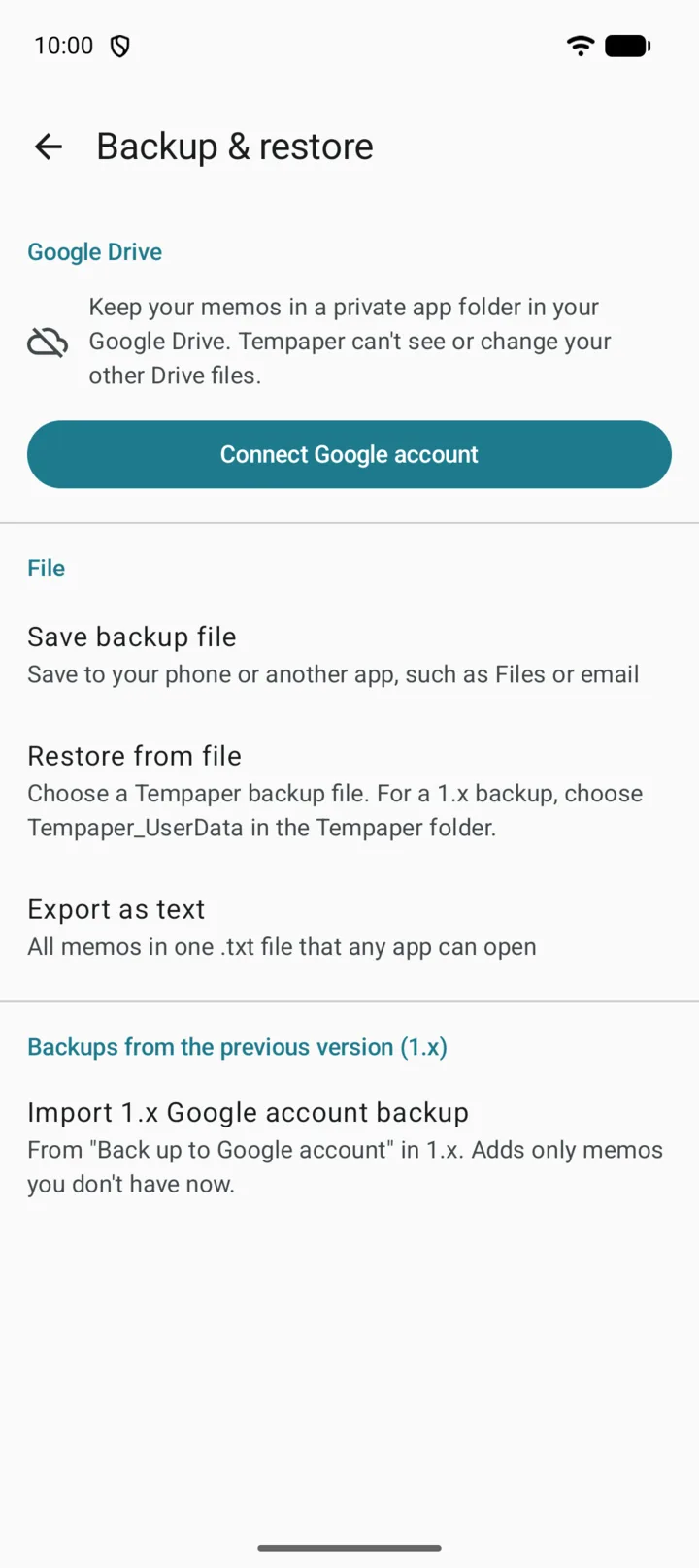
- Google Drive backup. Once a day, to a private app folder in your own Google Drive. We can't see it.
- Backup file and text export. Save a backup file wherever you like, or export every memo as one .txt file.
- Trash. Deleted memos wait in the trash until you empty it.
Make it yours
Change how memos look in Settings.
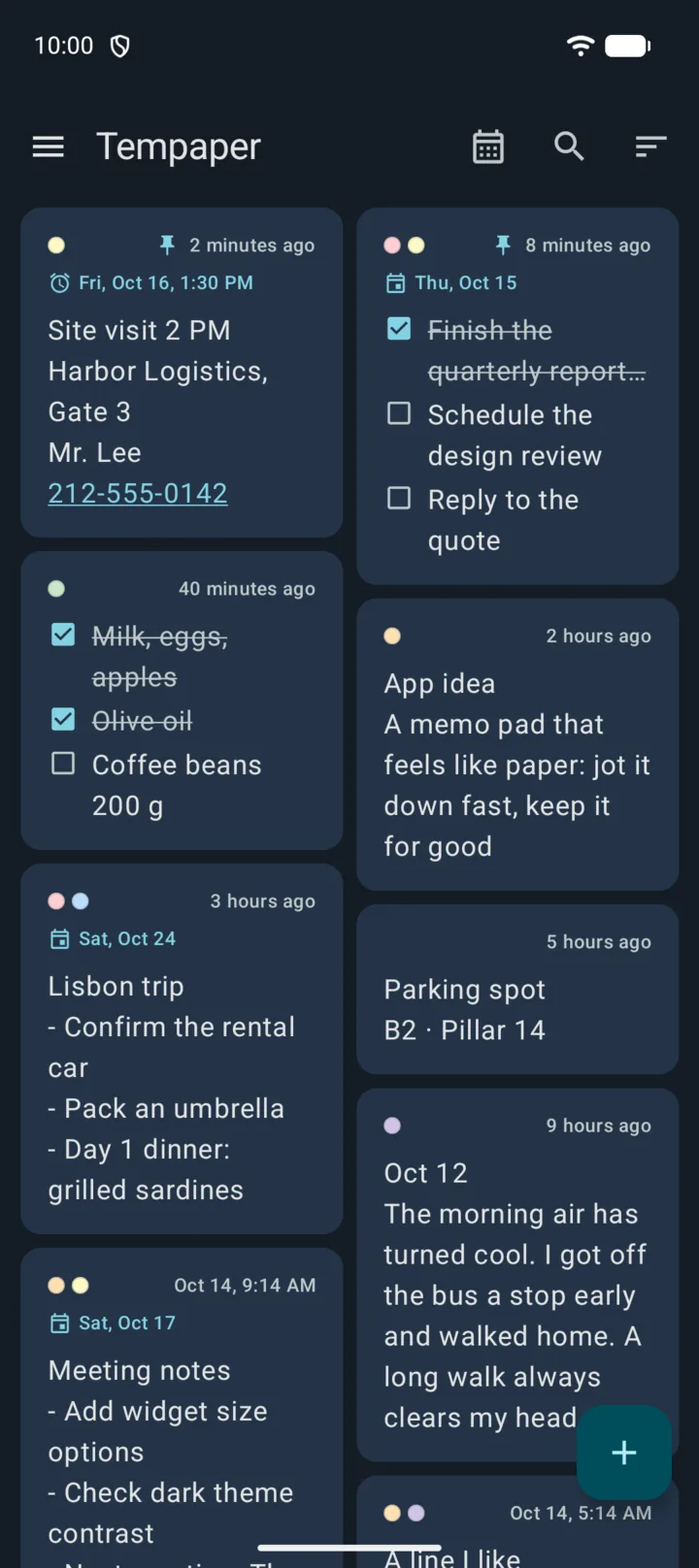
- One column or two. A simple list, or a two-column layout that fits more on screen.
- Text size and font. Three fonts and adjustable size. Keep every memo the same height, or let long ones grow.
- Dates on or off. Show when each memo was written or last changed.
- Light or dark. Or follow the system, with your wallpaper's colours on Android 12 and later.
- Six languages. English, Korean, Japanese, Traditional Chinese, German and French.
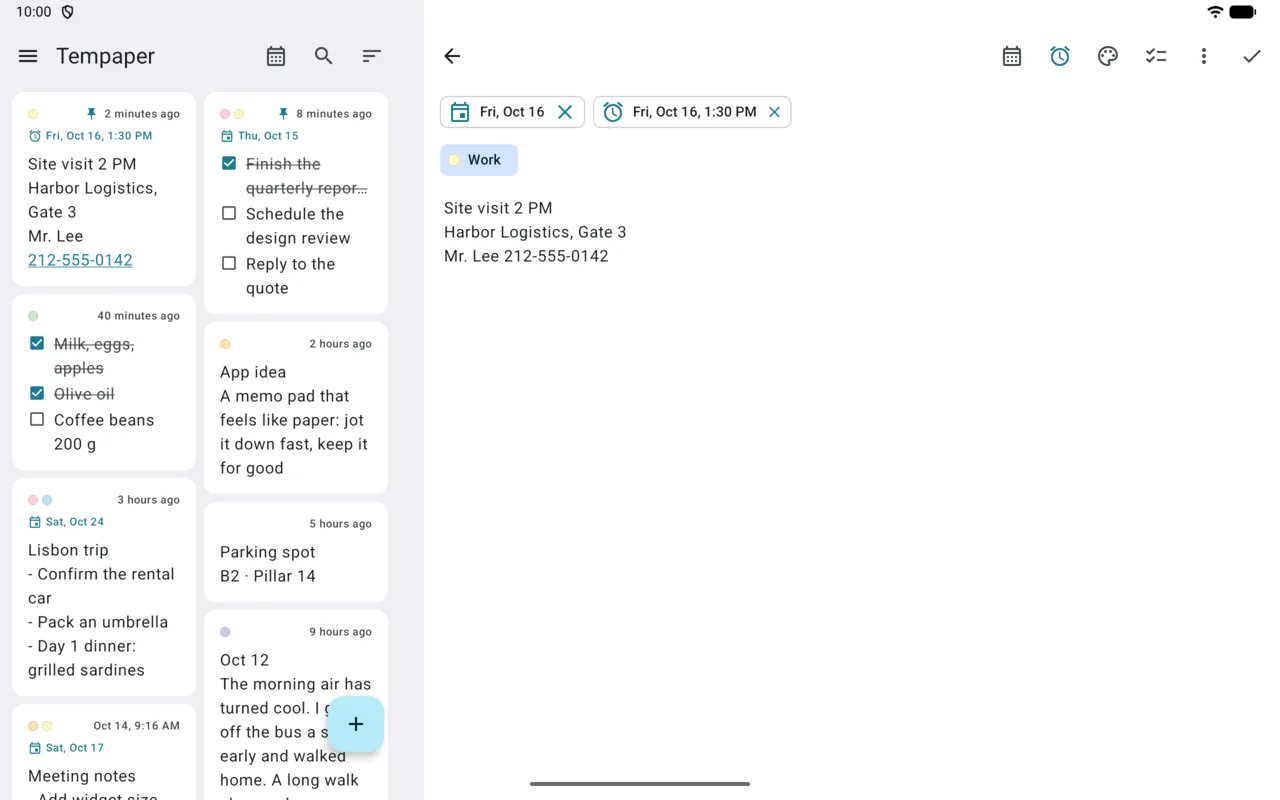
Made for tablets and foldables
On a tablet or an unfolded foldable, your list sits on the left and the memo on the right. Fold the phone and you keep writing where you were.
No account needed
- There's no sign-up. Memos and labels are saved on your device.
- Google Drive backup is optional and goes to your own Drive. The app uses only its own hidden folder there.
- To stay free, the app shows ads and uses Google services to count usage and report crashes. The privacy policy lists exactly what is sent.
Free, with ads
- Every feature is free. There are no in-app purchases or subscriptions.
- Ads appear in Settings, the trash and label management, and in the exit dialog. Writing memos is never interrupted.
- Prefer to close straight away? Turn on "Close without asking" in Settings.
Getting started
- Install from Google PlayTempaper is free. Updates arrive through Google Play.
- Write your first memoTap the + button, type, and tap Done. A few sample memos show you the basics.
- Add a shortcutAdd a widget or the New memo tile, or turn on Quick memo in notifications, so a memo is always one tap away.
- Latest version
- 2.1.0, released October 2026: Quick memo in notifications became a pocket notebook. Write right in the notification, see today's reminders, checklists and pinned notes there, and it comes right back if it's cleared. The calendar adds week and day views, and new memos work even while the app is locked. Your memos, colours and widgets carry over.
- Requirements
- Android 7.0 or later
- Price
- Free, with ads. No in-app purchases or subscription.
- Languages
- English, Korean, Japanese, Traditional Chinese, German and French. The app follows your phone's language.
- Uninstall
- Open Settings, then Apps, Tempaper and Uninstall. Memos are deleted with the app, so back them up first if you want to keep them.